Validating Signing Keys
When you take an action on Worktree through the UI that modifies your Git repository, the resulting commit is signed with one of our "Platform Keys." These are GPG keys which can be used to verify that the action was performed by Worktree's systems and was not forged by a third-party.
Our current, active Platform Keys are:
| Key ID | Algorithm | Fingerprint | - |
|---|---|---|---|
E1AA623D3EA63638 | EdDSA (22) | 7F18 A318 6DD0 B6D1 487F C95D E1AA 623D 3EA6 3638 | Download |
Platform Keys are currently used when:
- Merging a pull request
- Rebasing or merging the latest changes into an open PR
- Creating, uploading, or modifying a file in a repository through the web
- Creating or modifying a Wiki page
- The initial commit in a new repository, if you choose to initialize it with a README, License, or gitignore template
Validating Commit Signatures on the Web
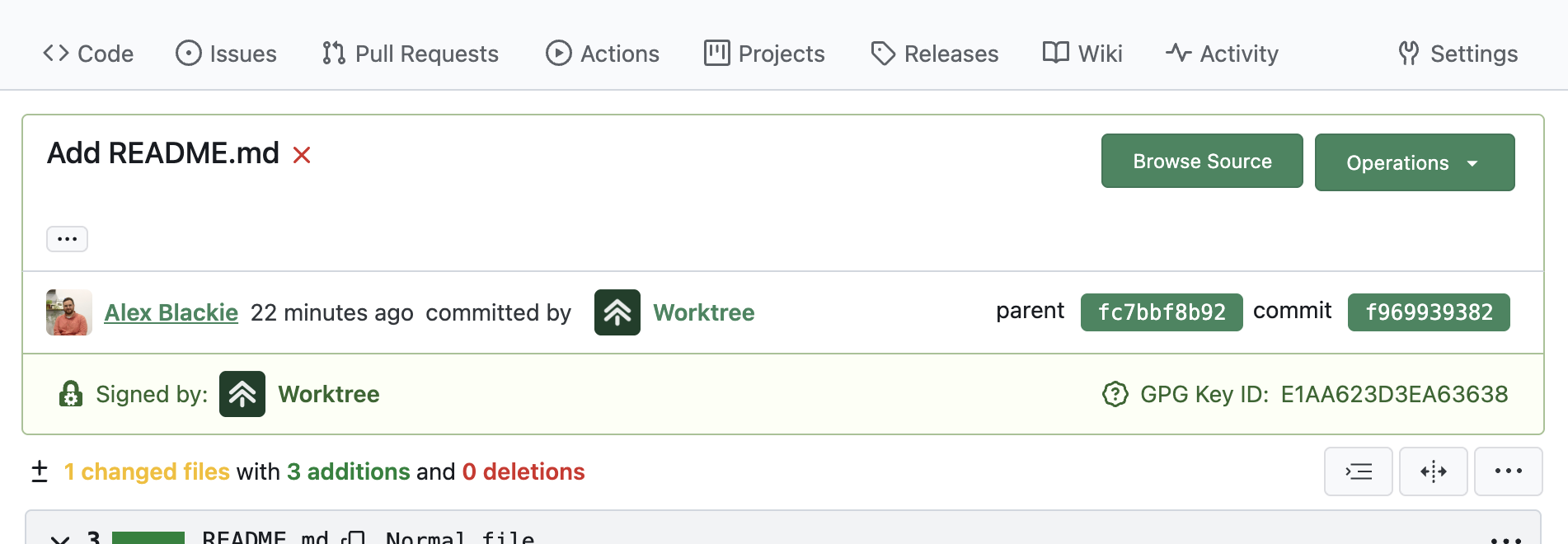
When viewing a commit on the web, the signature will be validated automatically against the current Platform Keys, and the signature details will be shown on the commit:
Validating Commit Signatures Locally
First, you must add our public key to your GPG keyring. You can do this in one line with:
$ curl -Ss https://worktree.ca/api/v1/signing-key.gpg | gpg --import
Then check the key fingerprint matches the key in the table above:
$ gpg --list-keys
pub   ed25519 2025-12-12 [SC]
      7F18A3186DD0B6D1487FC95DE1AA623D3EA63638
uid           [ultimate] Worktree <security@worktree.ca>
sub   cv25519 2025-12-12 [E]
You will need to mark the key as "ultimately trusted" for signatures to show as trusted. You can do this by editing the key and setting its trust level to "5":
$ gpg --edit-key 7F18A3186DD0B6D1487FC95DE1AA623D3EA63638
[...]

gpg> trust
pub  ed25519/E1AA623D3EA63638
     created: 2025-12-12  expires: never       usage: SC
     trust: full          validity: unknown
sub  cv25519/7AD6CDB68863885D
     created: 2025-12-12  expires: never       usage: E
[ unknown] (1). Worktree <security@worktree.ca>

Please decide how far you trust this user to correctly verify other users' keys
(by looking at passports, checking fingerprints from different sources, etc.)

  1 = I don't know or won't say
  2 = I do NOT trust
  3 = I trust marginally
  4 = I trust fully
  5 = I trust ultimately
  m = back to the main menu

Your decision? 5
Do you really want to set this key to ultimate trust? (y/N) y
Now, finally, you can show the signatures on a commit and Git will use the GPG key to validate the commit is properly signed by Worktree:
$ git show --show-signature
commit f969939382d8c833ede5ec10f1090ad9a798a589 (origin/main, origin/HEAD)
gpg: Signature made Fri 12 Dec 11:48:31 2025 EST
gpg:                using EDDSA key 7F18A3186DD0B6D1487FC95DE1AA623D3EA63638
gpg: checking the trustdb
gpg: marginals needed: 3  completes needed: 1  trust model: pgp
gpg: depth: 0  valid:   2  signed:   0  trust: 0-, 0q, 0n, 0m, 0f, 2u
gpg: Good signature from "Worktree <security@worktree.ca>" [ultimate]
Author: Alex Blackie <alex@blackie.ca>
Date:   Fri Dec 12 16:48:31 2025 +0000

    Add README.md
As a reminder, this only validates commits and changes made through the Worktree UI or API. Commits signed by individuals still use their individual keys, and so you'll need to import their individual public keys if you want to verify their signatures as well.